How to Speed Up Your Old Laptop for Better Performance
As laptops age, their performance can decline, leading to slower boot times, lagging applications, and general frustration. However, before considering a costly replacement, it is often possible to restore a great deal of speed and responsiveness through a series of systematic steps. This article outlines practical, low-cost methods to optimize an older laptop, ranging from software cleanups to hardware upgrades. The goal is to provide a structured approach that can be adapted to various laptop makes and models, helping users get more value from their existing devices.
Understanding the underlying causes of sluggishness is essential. Over time, systems accumulate unnecessary files, background processes multiply, and software updates demand more resources than the original hardware can comfortably handle. Additionally, hardware components may degrade or become outdated relative to current software demands. By addressing these factors in a logical order, users can often achieve noticeable improvements without the expense of a new laptop. This guide will explore both software and hardware solutions, emphasizing methodical actions and realistic expectations.
Software Optimization: Cleaning Up the System
The first area to investigate is the software environment. Many performance issues stem from unnecessary programs starting automatically, background processes consuming resources, and fragmented or cluttered storage. A systematic cleanup can yield immediate benefits.
Startup Programs Management
One of the most impactful steps is to review and manage startup programs. When a laptop boots, many applications launch automatically, even if they are not needed immediately. This can significantly slow down the startup process and consume memory in the background. To manage these, users can access the Task Manager (Windows) or System Preferences (macOS) to view startup items. Disabling unnecessary programs—such as updaters, messaging apps, or music players—can reduce boot time and free up system resources. It is advisable to keep only essential software enabled, like security tools or driver managers. Regularly reviewing this list is a good practice, as new programs often add themselves to startup.
Disk Cleanup and Defragmentation
Over time, hard drives accumulate temporary files, cache data, and other clutter that consumes space and can slow down file access. Performing a disk cleanup is a straightforward way to remove these files. On Windows, the Disk Cleanup utility can delete temporary files, system cache, and empty the Recycle Bin. For macOS, tools like Storage Management or third-party apps can help. Additionally, if the laptop uses a traditional hard disk drive (HDD), defragmentation can reorganize fragmented data, making it easier for the drive to read files faster. However, for solid-state drives (SSDs), defragmentation is not necessary and could even reduce the drive’s lifespan. Therefore, it is important to know which type of storage is installed.
Uninstalling Unused Software
Another effective measure is to uninstall programs that are no longer used. Many laptops come with pre-installed trial software or bloatware that occupies space and may run background processes. By going through the list of installed programs and removing those that are irrelevant, users can free up storage and improve system stability. Care should be taken to avoid removing system-critical software, but most users can safely uninstall games, toolbars, or other redundant apps. This action can be combined with a file cleanup to eliminate large files like old downloads or duplicates.
Hardware Upgrades: Enhanced Performance
When software optimizations are not sufficient, hardware upgrades can offer a more substantial performance boost. Two of the most impactful upgrades for an older laptop are increasing RAM and replacing a traditional HDD with an SSD.
Is It Worth Adding More RAM?
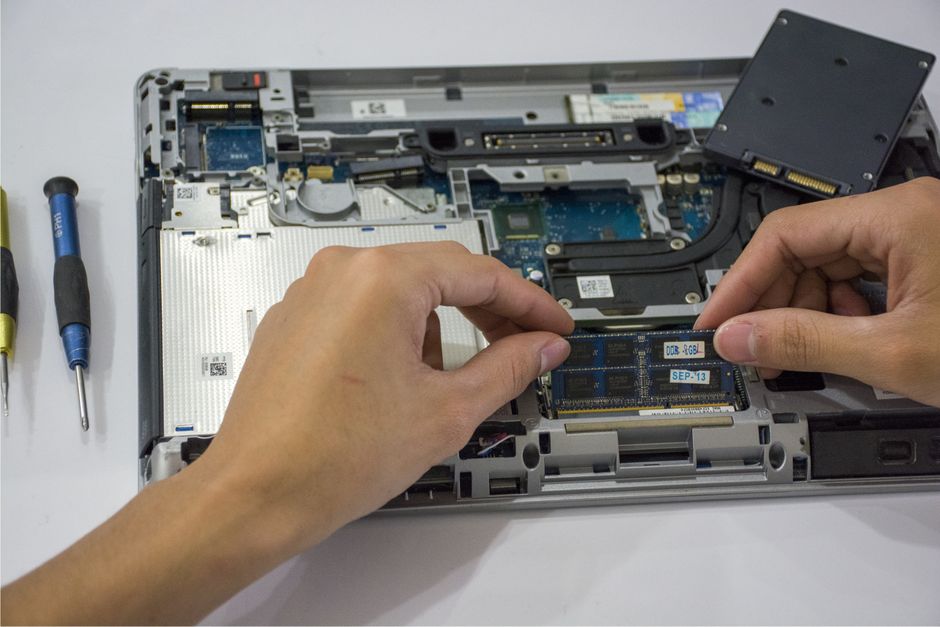
RAM (Random Access Memory) is crucial for multitasking and running memory-intensive applications. If the laptop often runs out of memory, it may rely on the slower page file, leading to significant slowdowns. Upgrading RAM is often a cost-effective way to improve performance, especially if the laptop is using less than 8 GB. However, it is essential to check the laptop’s specifications and whether RAM is user-upgradeable or soldered. Laptops with accessible RAM slots can be easily upgraded, while some modern ultrabooks have RAM that cannot be changed. A RAM upgrade can allow more programs to run simultaneously without hitting the swap file, making the system feel more responsive.
SSD Replacement: A Major Impact
Swapping a traditional spinning hard drive for a solid-state drive (SSD) is arguably the single most effective upgrade for an old laptop. SSDs have no moving parts and offer much faster read/write speeds, leading to quicker boot times and faster application launches. The difference is often dramatic: a laptop that took minutes to boot may start in seconds. Moreover, SSDs are more durable and consume less power, potentially improving battery life. The installation process involves physically replacing the drive and either cloning the existing system or performing a fresh OS installation. While this upgrade requires some technical skill, many resources are available to guide users. For those hesitant to do it themselves, professional installation is usually affordable.
System Settings and Maintenance
Beyond initial cleanups and upgrades, ongoing system settings and regular maintenance can help sustain performance over time.
Power Settings Optimization
Power plans often default to balanced settings that may prioritize energy savings over performance. Switching to a high-performance power plan can allow the CPU to run at higher speeds, improving responsiveness. On Windows, users can select the High Performance power plan in the Control Panel. On macOS, Energy Saver settings can be adjusted. However, it is important to note that these settings may increase heat generation and power consumption, so they are not always ideal for laptops running on battery. Users can often create a custom plan that balances battery life and performance.
Visual Effects Adjustments
Operating systems use many visual effects, like animations and transparency, which can consume GPU resources. Disabling or minimizing these effects can free up processing power, especially if the laptop has a weak integrated graphics chip. On Windows, accessing System Properties and adjusting Performance Options allows users to select a custom setting, turning off unnecessary animations. On macOS, reducing transparency is possible in Accessibility settings. These adjustments may not be as impactful as hardware changes, but they can make the interface feel more fluid on older machines.
Regular System Updates
Keeping the operating system and drivers up to date is crucial for security and stability, but updates also often include performance optimizations. While it may seem counterintuitive to install updates that could slow down an old laptop, many updates improve resource management or fix bugs that cause slowdowns. It is recommended to regularly install updates, but also to be mindful of major updates that may require more resources than the laptop can handle. For very old laptops, users might consider using a lighter operating system version, as discussed later.
Advanced Techniques and Considerations
For users willing to explore more advanced solutions, there are additional methods to squeeze performance out of an aging laptop.
Using Lightweight Operating Systems
If the laptop is running a resource-hungry OS, such as an older version of Windows, switching to a lightweight Linux distribution can dramatically improve performance. Distros like Lubuntu or Xubuntu are designed to be fast on modest hardware. Users can often test the OS via a live USB drive before committing to installation. This path requires some familiarity with new software environments, but for many users, the speed gains are worth the learning curve. It also extends the useful life of the hardware.
Managing Background Processes and Services
Even after limiting startup programs, there may be many background services running that are not essential. Advanced users can use tools like the Services Manager (Windows) or Activity Monitor (macOS) to identify and stop unnecessary processes. However, this requires careful research, as disabling critical services can cause system instability. It is advisable to stick to disabling clearly non-essential applications, like printer manager or media indexing tools. Regular system scans for malware are also essential, as malicious software can consume resources without the user’s knowledge.
Cooling and Thermal Management
Overheating can lead to thermal throttling, where the CPU reduces its speed to cool down, directly impacting performance. Ensuring proper ventilation by cleaning dust from fans and vents can prevent overheating. Using a laptop cooler can also help in hot environments. Moreover, checking that the internal thermal paste is in good condition may be necessary for very old laptops, but this is a more invasive procedure. Maintaining optimal temperatures not only improves performance but also extends the hardware’s lifespan.
Performance improvements are often incremental and context-dependent. The effectiveness of each step varies based on the laptop’s original specifications, the software usage patterns, and the condition of the hardware. It is prudent to monitor the impact of each change and adjust accordingly.
Final Verdict: Steps to a More Responsive Laptop
In conclusion, speeding up an old laptop involves a combination of software cleanups, hardware upgrades, and ongoing maintenance. By methodically addressing startup programs, disk clutter, and visual effects, users can often see immediate improvements. For more significant gains, upgrading memory or switching to an SSD can transform the user experience. Additionally, optimizing power settings and keeping the system updated can sustain performance. For those seeking even more radical changes, exploring lightweight operating systems may be worthwhile.
Ultimately, the approach should be tailored to the user’s technical comfort level and the laptop’s specific limitations. It is important to set realistic expectations: while these steps can make an old laptop much more usable, they cannot make it match the performance of a new device. The key is to focus on the most impactful changes and progressively implement them, testing the system’s response at each stage. With careful planning and a bit of effort, a laptop that once seemed obsolete can be given a new lease on life, providing a functional and efficient computing solution for many more years.